



1. Website interface
Every page has the same two navigation areas: the header at the top and the footer at the bottom.

At the top, the logo takes you to the home page. The other controls help you find films and cinemas:
- Search: enter a film, cinema or director. Films and directors are filtered by the selected city. Cinemas are shown without that filter. Select a result to open the film page or cinema listings.
- City: open the selector and choose a city. Film listings update for that area.
- Listings · Cinemas: open the list of available cinemas. Select one to go straight to its showtimes.
- Language: switch between Spanish, Catalan and English. The site returns to the same page in your chosen language.
The footer appears at the bottom of every page. Scroll down to access its links.
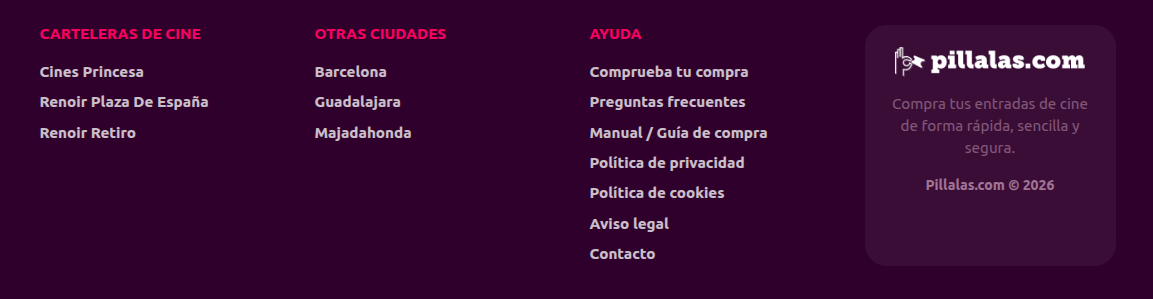
Its columns group cinema listings, links to other cities and the Help section, which includes purchase lookup, frequently asked questions, this guide, policies, legal notice and contact details.

At the top, the logo takes you to the home page. The city shortcut appears in abbreviated form beside it; tap it to choose another city. On narrow phones, tap the magnifying glass to reveal search. The three-line button opens the side menu.
- Search: enter a film, cinema or director. Film and director suggestions depend on the selected city. Cinemas are not filtered by it. Choose a suggestion to open its details.
- Your cinema: in the menu, open “Choose your cinema” and select one to view its showtimes.
- Website language: open this menu option and choose Spanish, Catalan or English; you will stay on the current page.
- Help: the menu links to purchase lookup, frequently asked questions and contact details.
The footer is also at the bottom of every page. Scroll down to find its links.
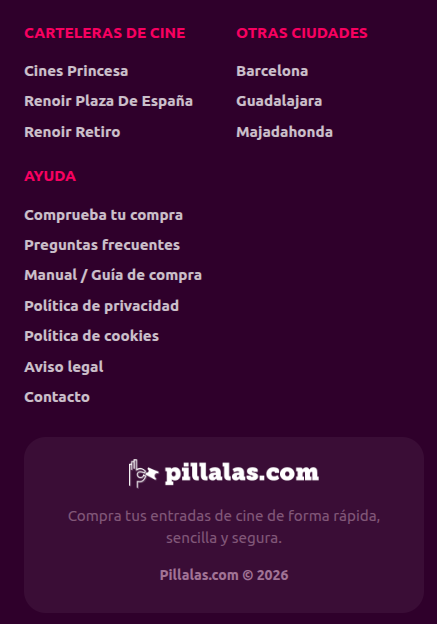
The footer groups cinema listings, other cities and help links for purchase lookup, frequently asked questions, the guide, policies, the legal notice and contact.



 Renoir Floridablanca
 Multicines Guadalajara
 Zoco Majadahonda